Before class
Log in at accounts.tacc.utexas.edu and set up MFA with an authenticator app (Okta Verify or Google Authenticator), not SMS. Take a screenshot of your account page and submit it. That is your pre-work.
After class, download your finished notebook (right-click it in Jupyter's file browser, then Download) and submit it.
Session 1: Fine-tune a model
Everyone does this on their own. One GPU each.
Log in to TAP
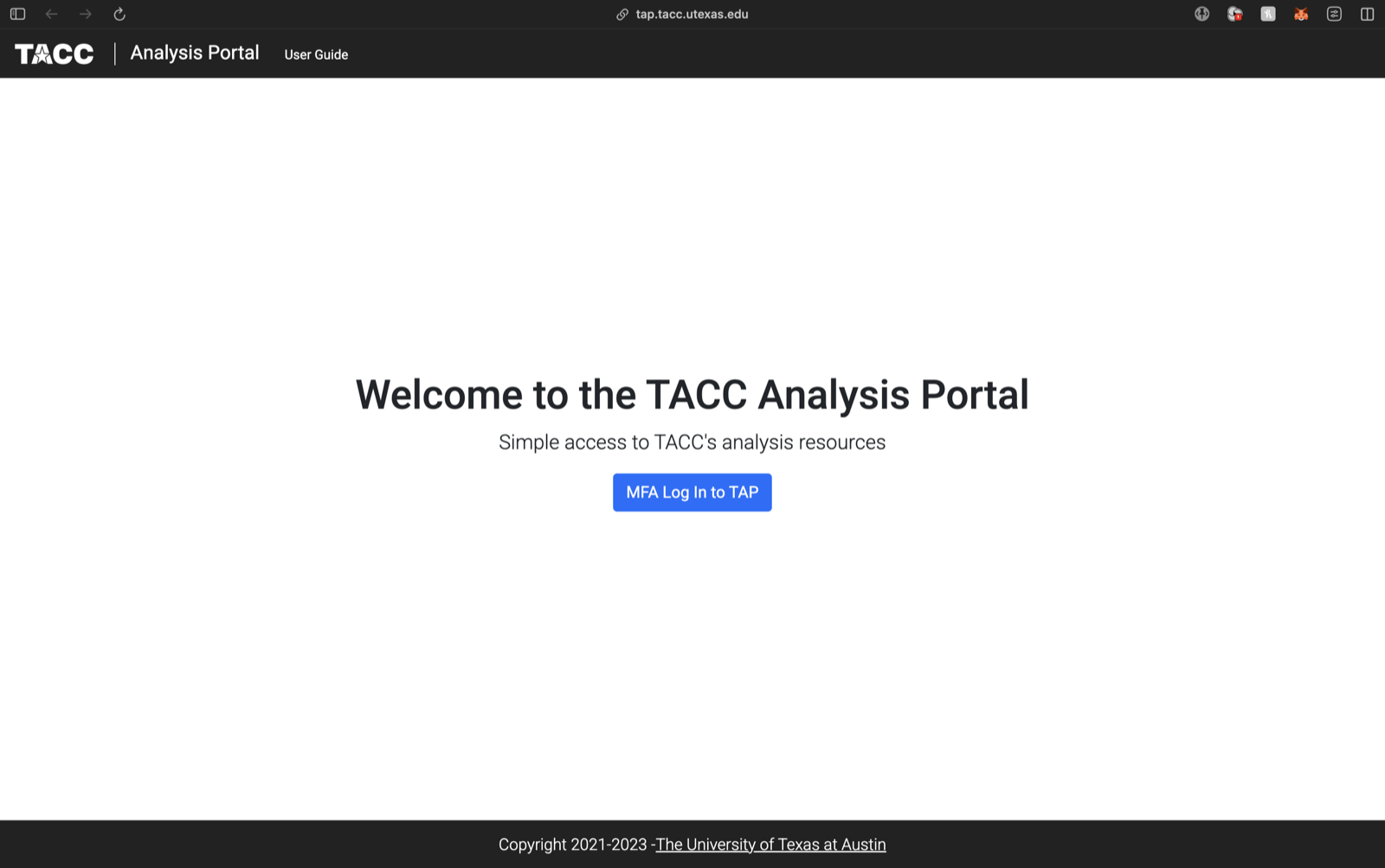
Go to tap.tacc.utexas.edu and click MFA Log In to TAP.
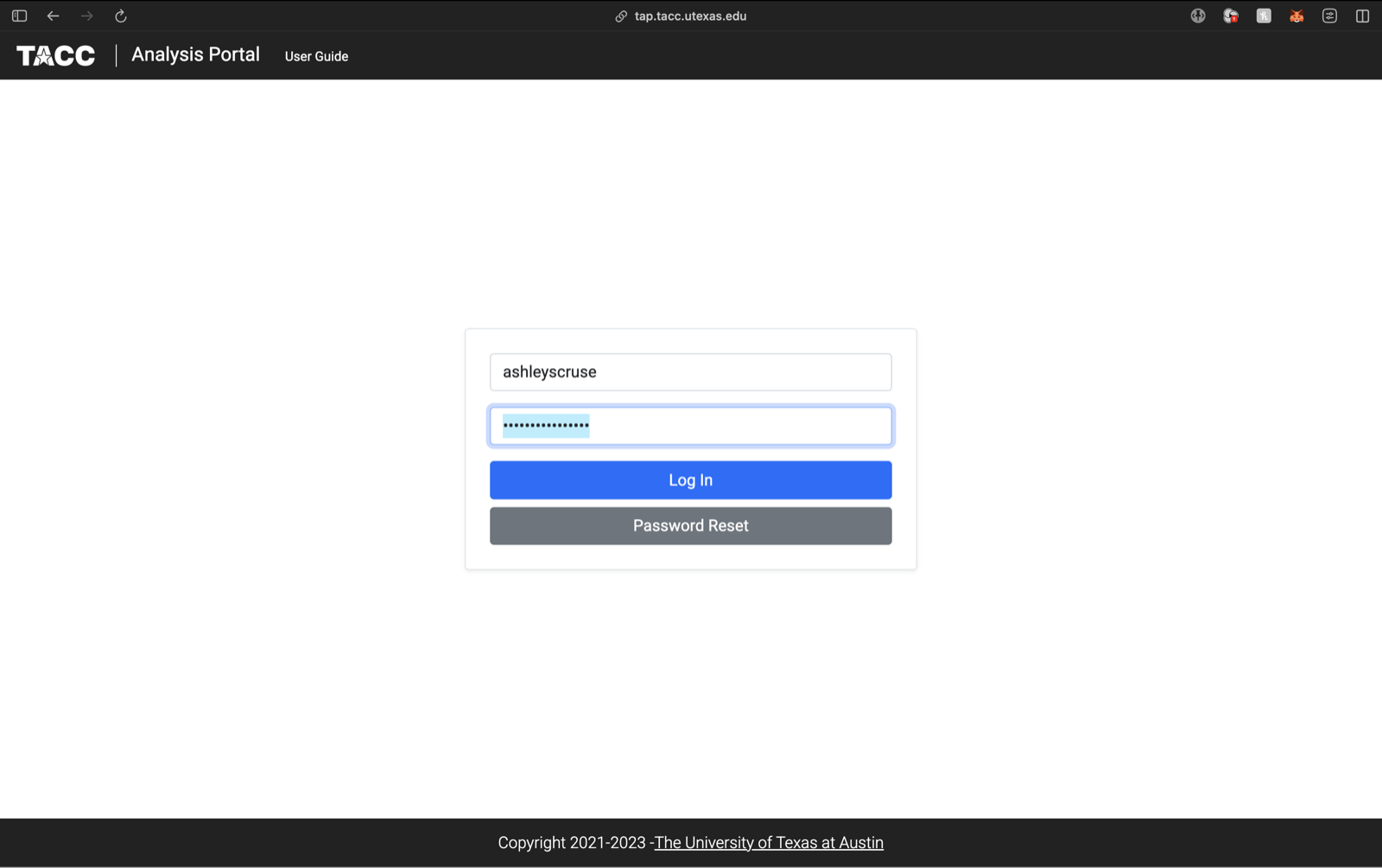
Enter your TACC username and password, then click Log In.
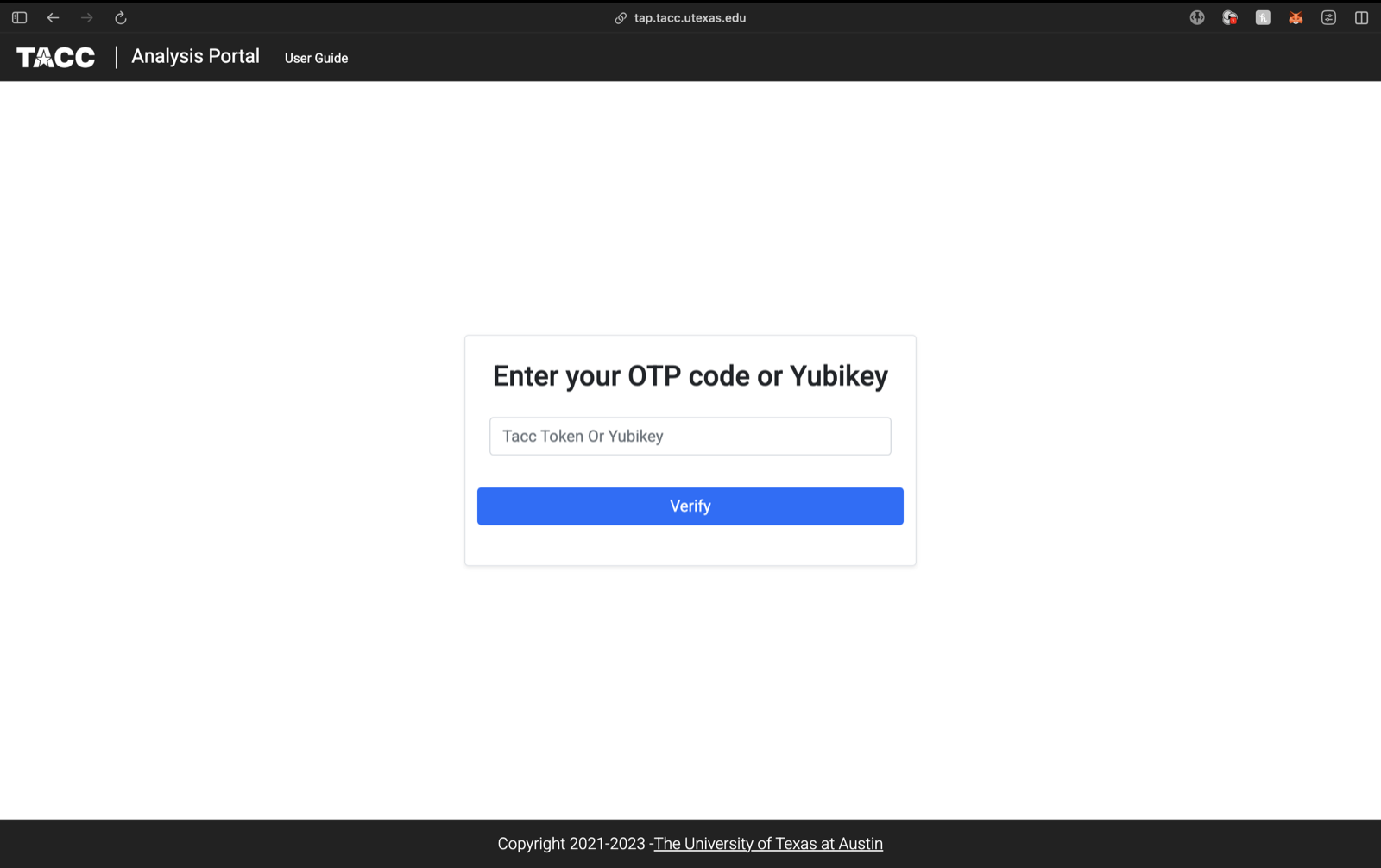
Type the code from your authenticator app and click Verify.
Start your GPU session
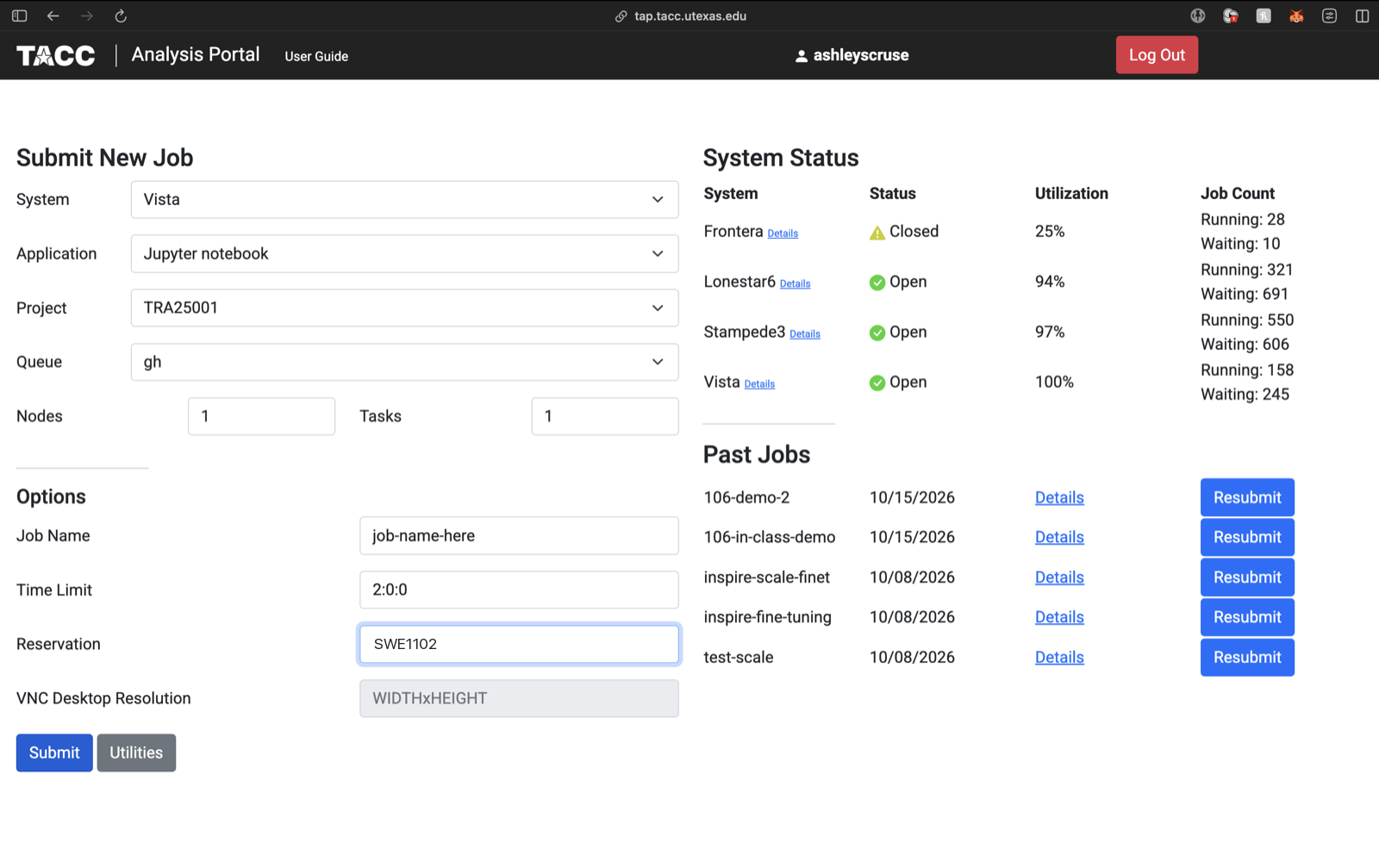
Fill in Submit New Job:
| Setting | Choose |
|---|---|
| System | Vista |
| Application | Jupyter notebook |
| Project | TRA25001 |
| Queue | gh (the GPU queue) |
| Nodes / Tasks | 1 / 1 |
| Time Limit | 2:0:0 (two hours) |
| Reservation | SWE1102 |
Then click Submit.
Open Jupyter
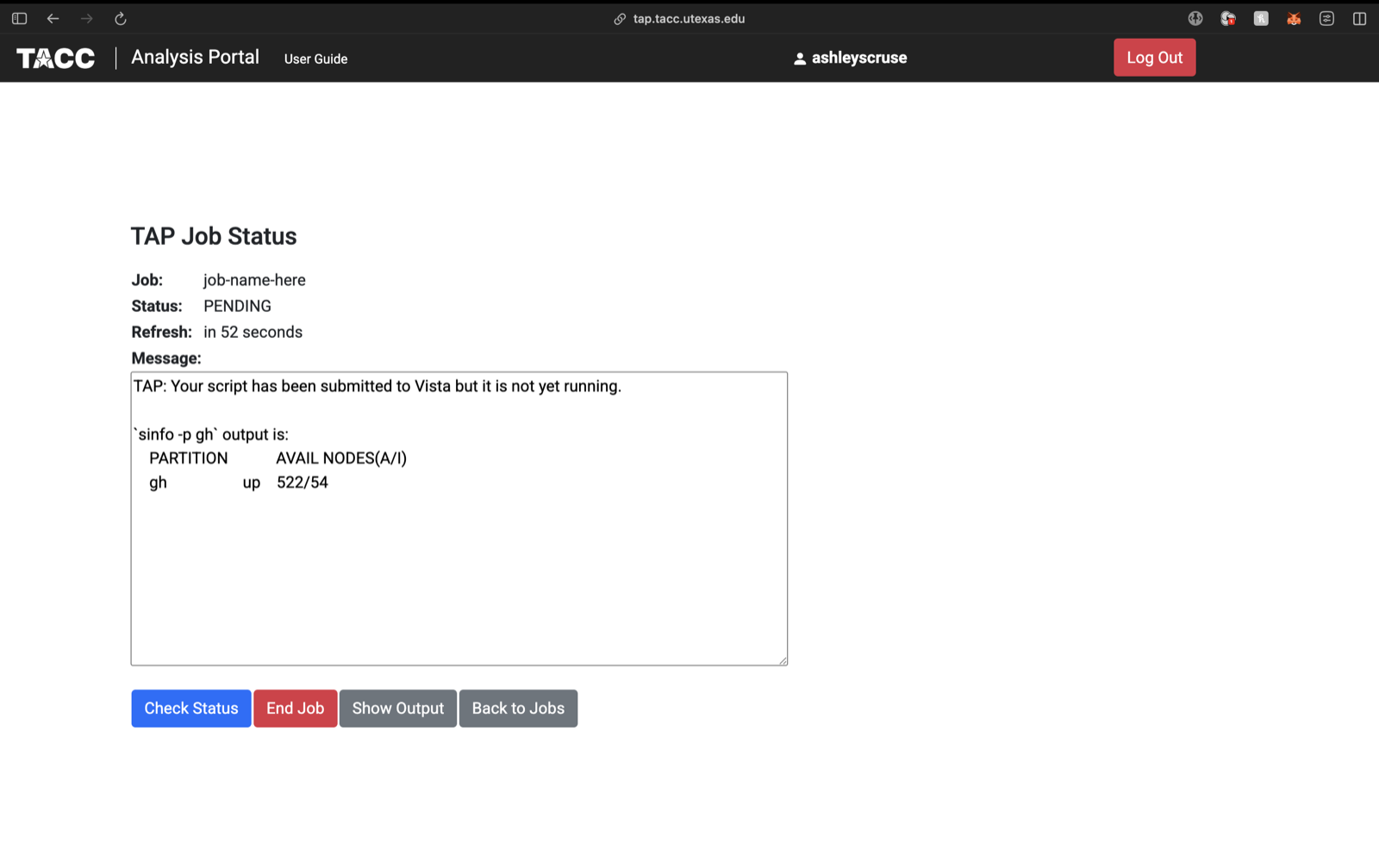
TAP shows your job status. It says PENDING while it waits for a GPU and refreshes on its own. When it is running, click Connect. Jupyter opens in your browser.
Get the workshop
In Jupyter, open a Terminal from the Launcher and type:
cd $HOME
git clone https://github.com/ashleyscruse/hpc-finetune-workshop
This puts the workshop in your home folder, so it shows up in Jupyter's file browser on the left.
Run it
In the file browser, open hpc-finetune-workshop/notebooks/01-fine-tune.ipynb.
Click a cell and press Shift + Enter. Go top to bottom. A cell is done when the [*] beside it turns into a number.
When you're done: end your session
Go back to TAP and click End Job so the GPU goes back. Your results are saved.
Log in to the supercomputer portal
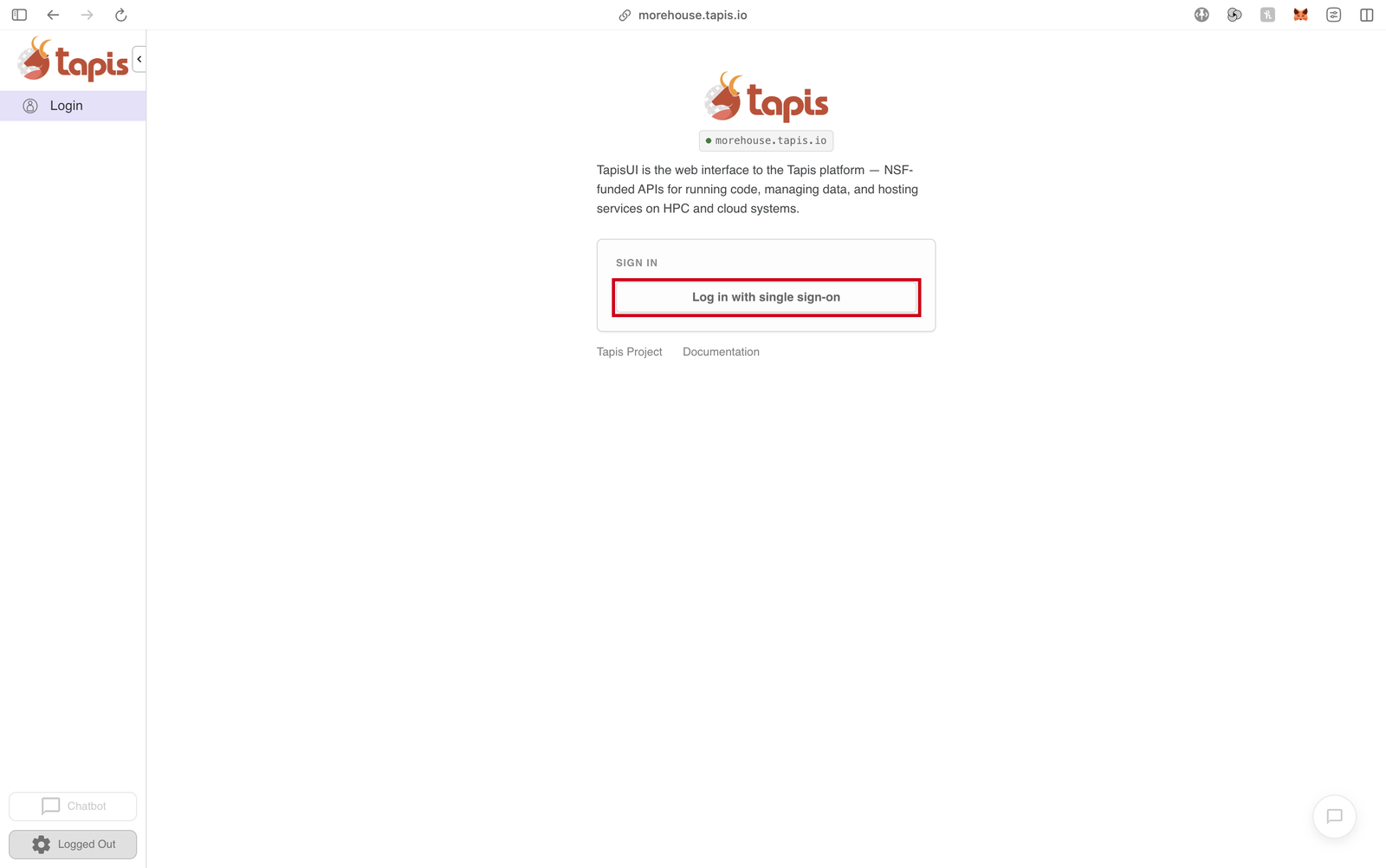
Go to morehouse.tapis.io and click Log in with single sign-on.
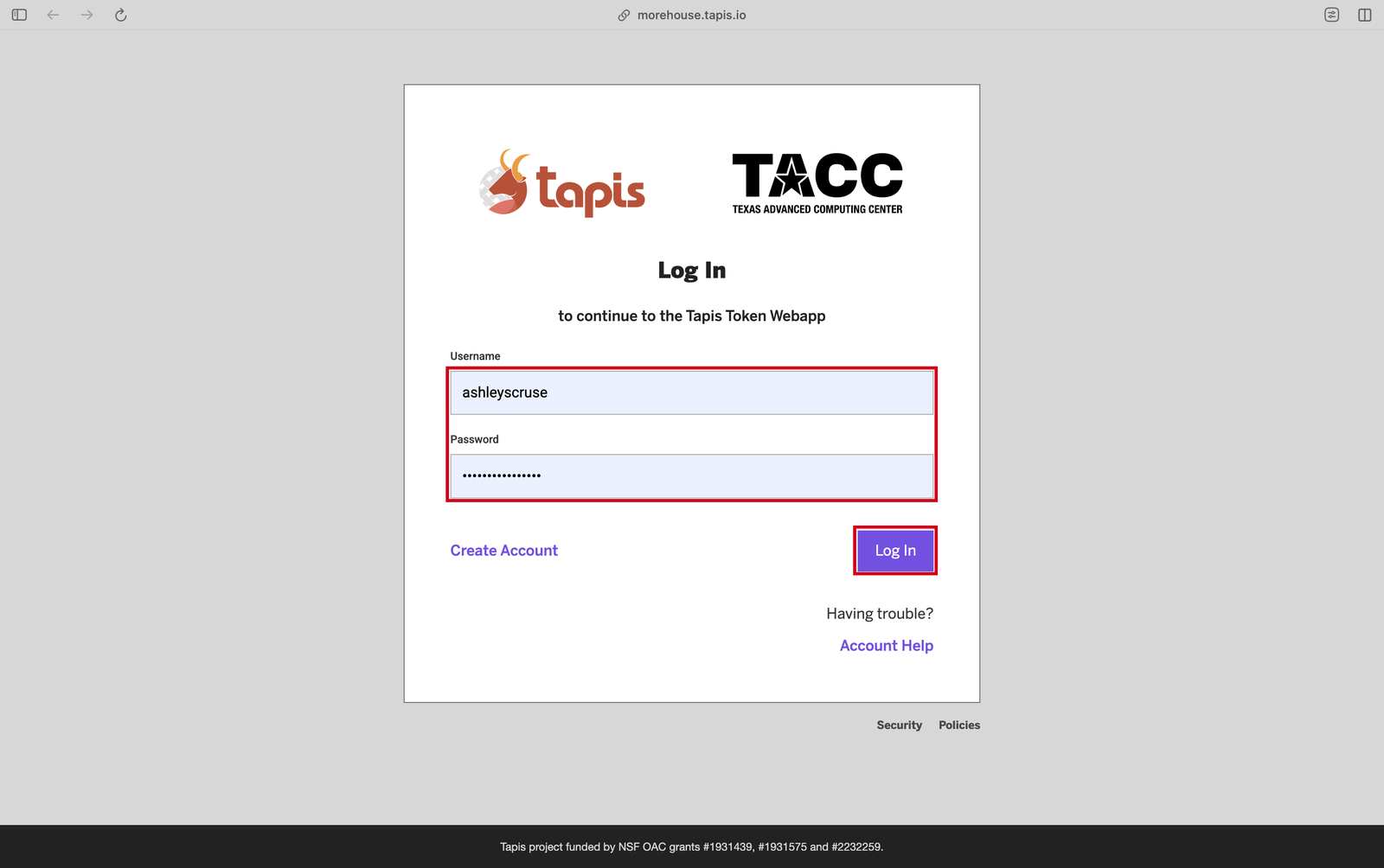
Enter your TACC username and password, then click Log In.
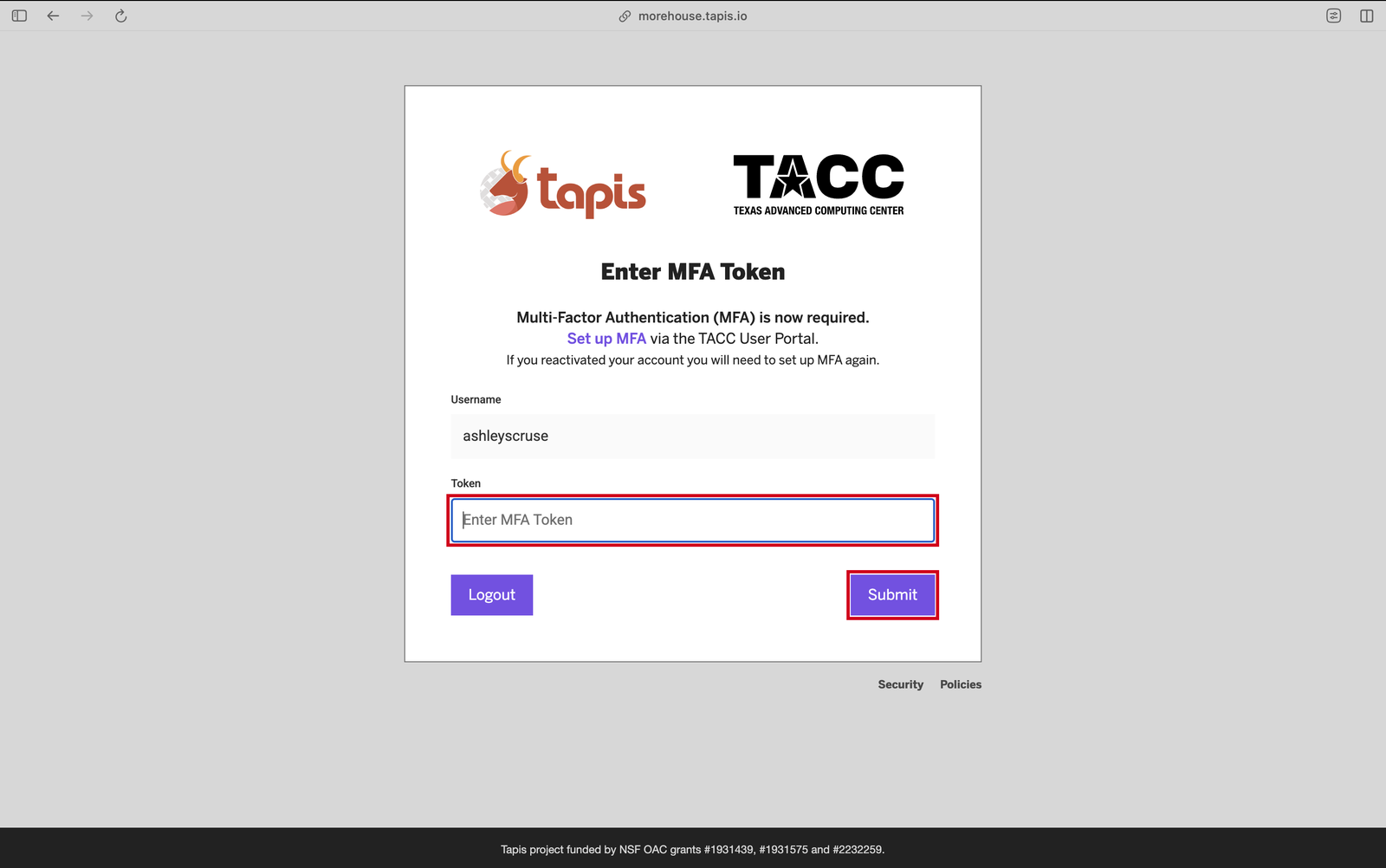
Enter the code from your authenticator app and click Submit.
Connect your account to Vista
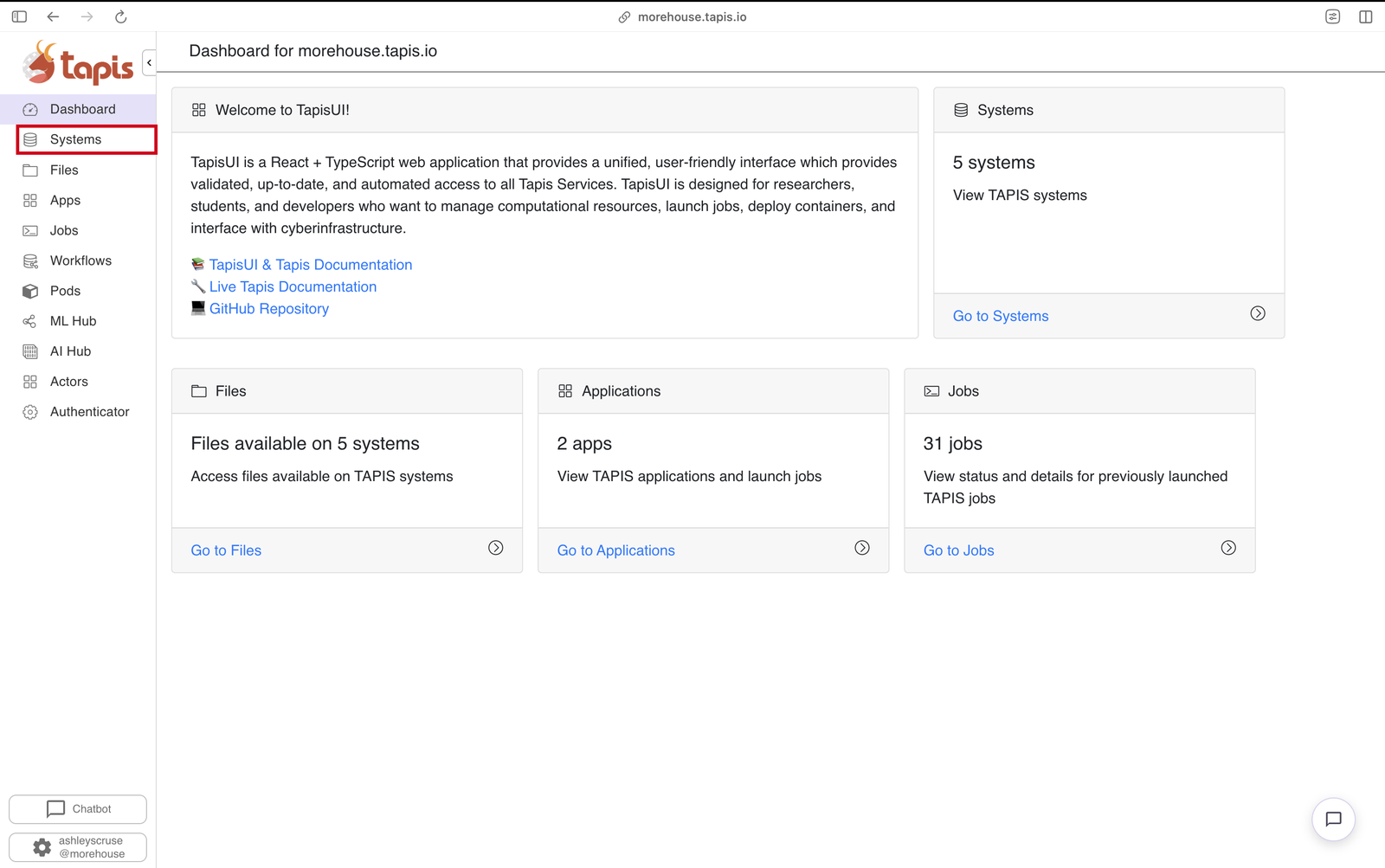
On the dashboard, click Systems in the left panel.
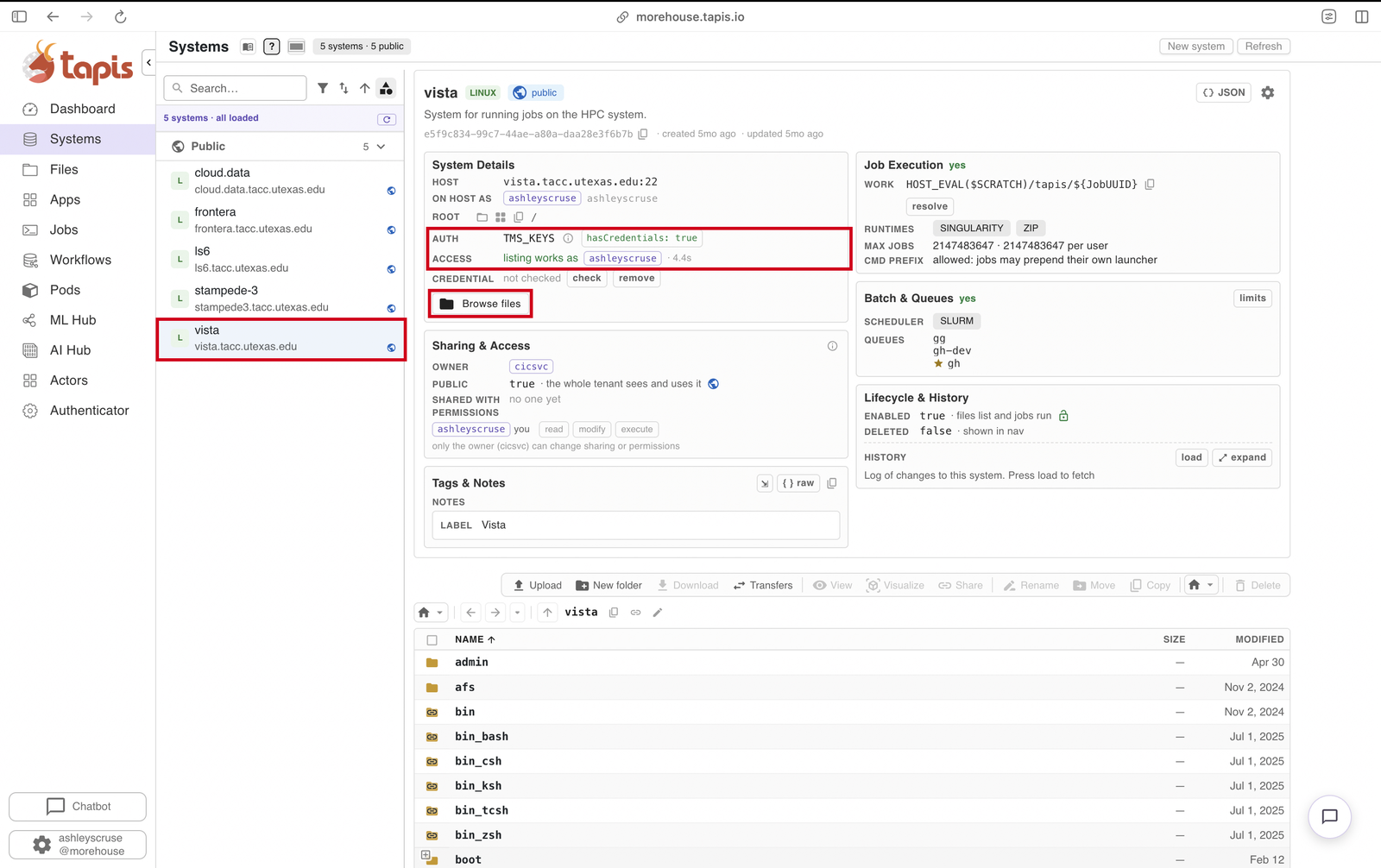
Click vista. If it says you are not yet authenticated, click Authenticate with TMS Keys.
Check it worked: AUTH says hasCredentials: true, ACCESS says listing works, and Browse files shows a list of your folders.
Start your GPU session
a. Pick the app
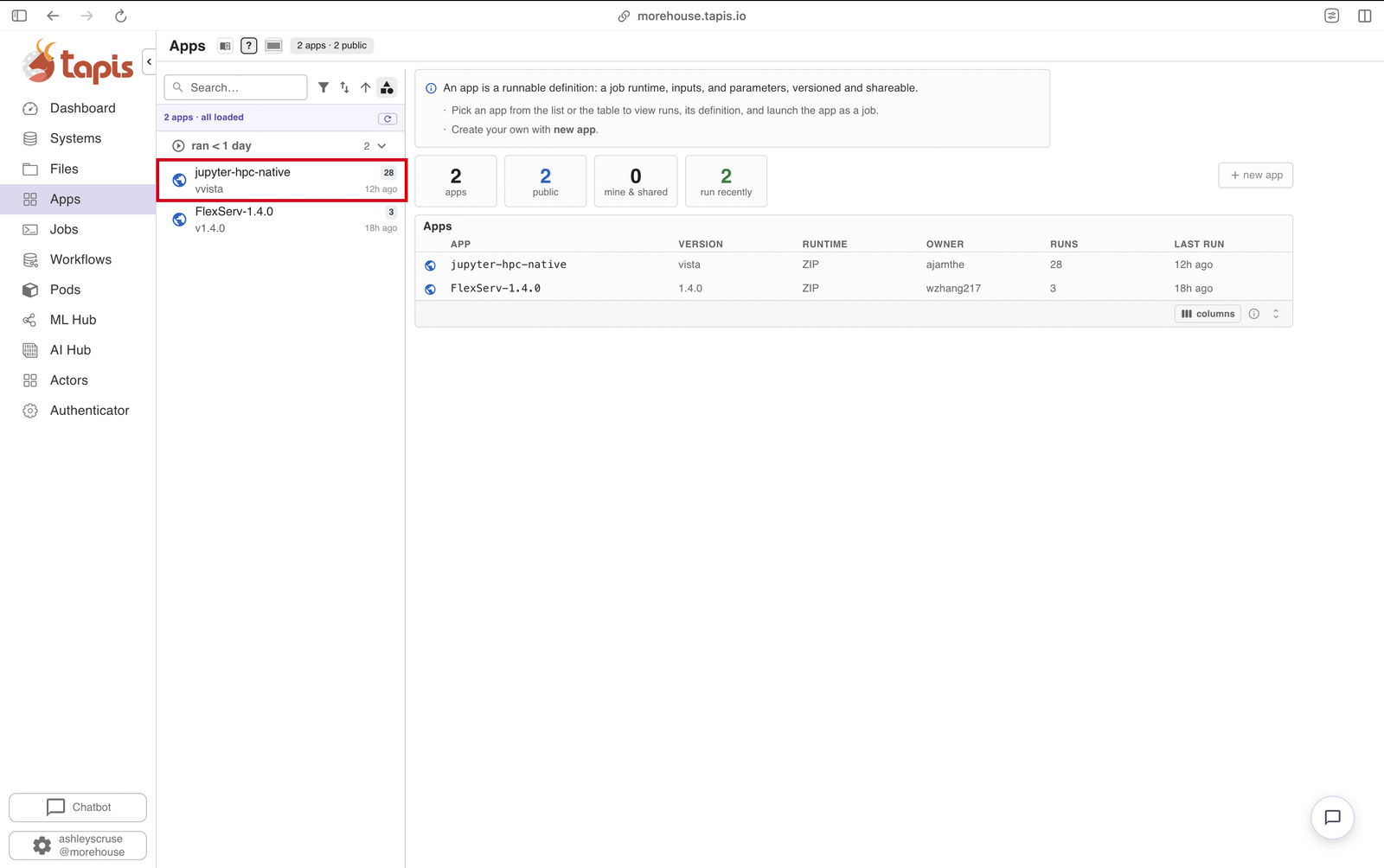
Click Apps, then click jupyter-hpc-native.
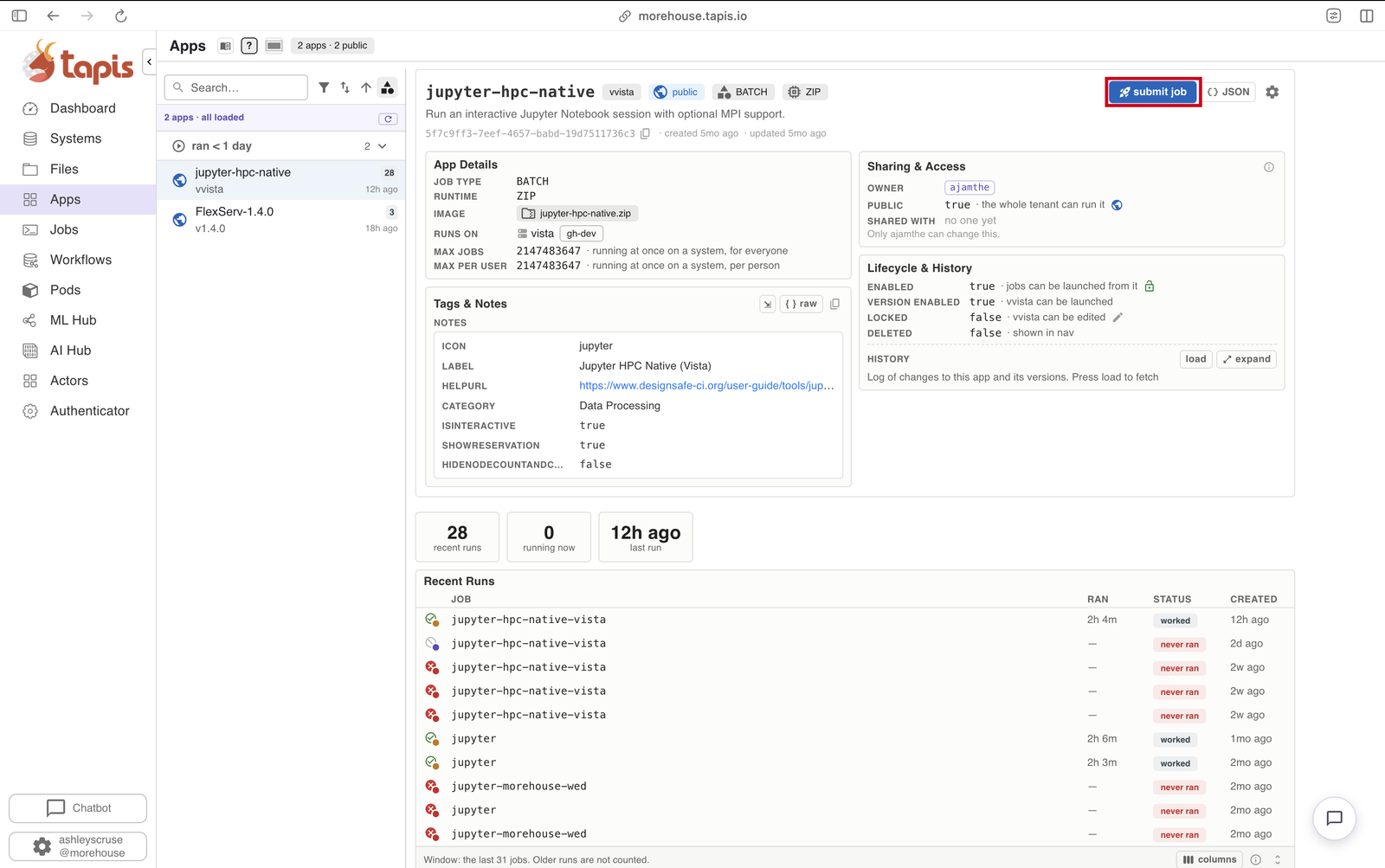
Click submit job at the top right.
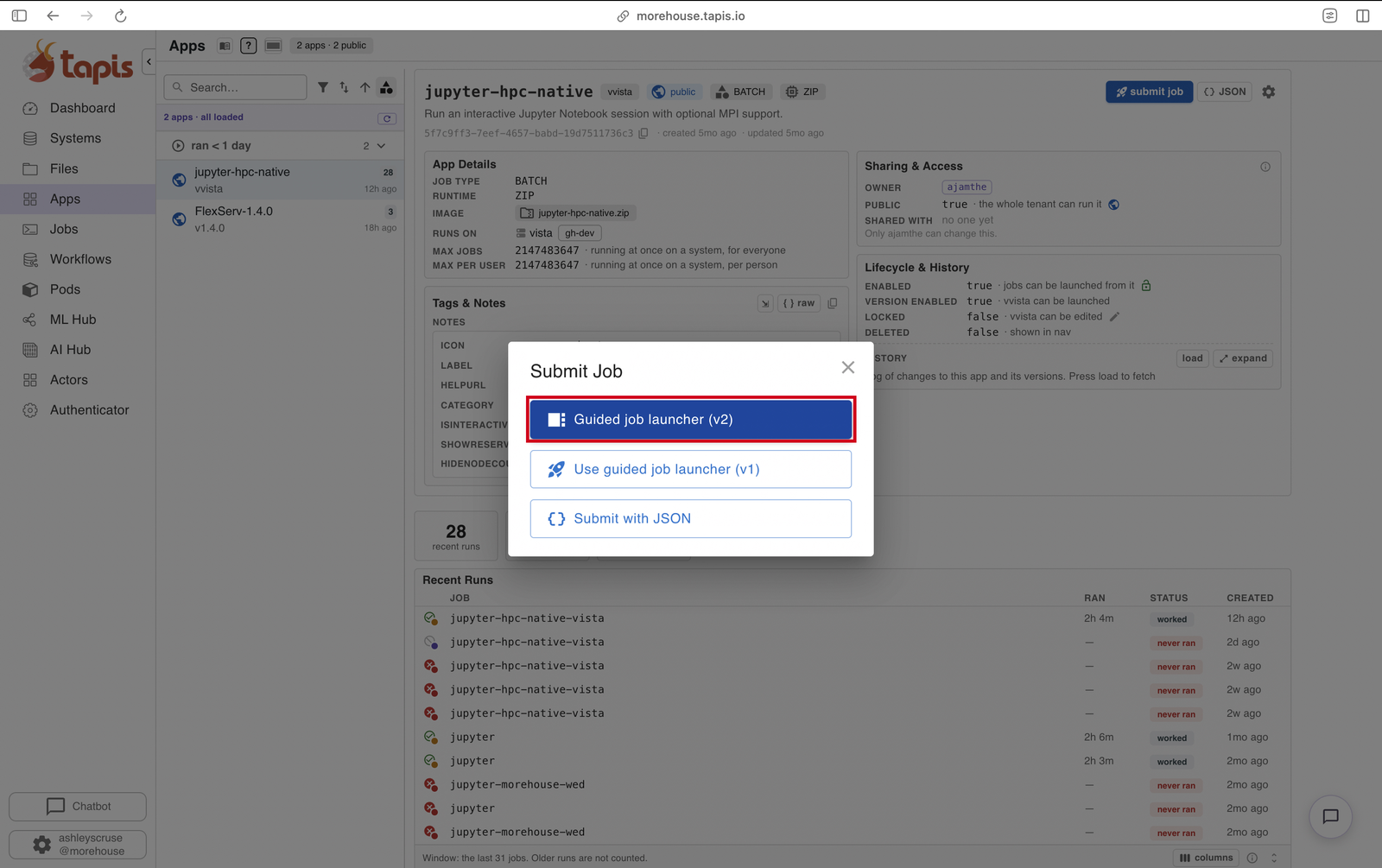
b. Choose the guided launcher
Click Guided job launcher (v2).
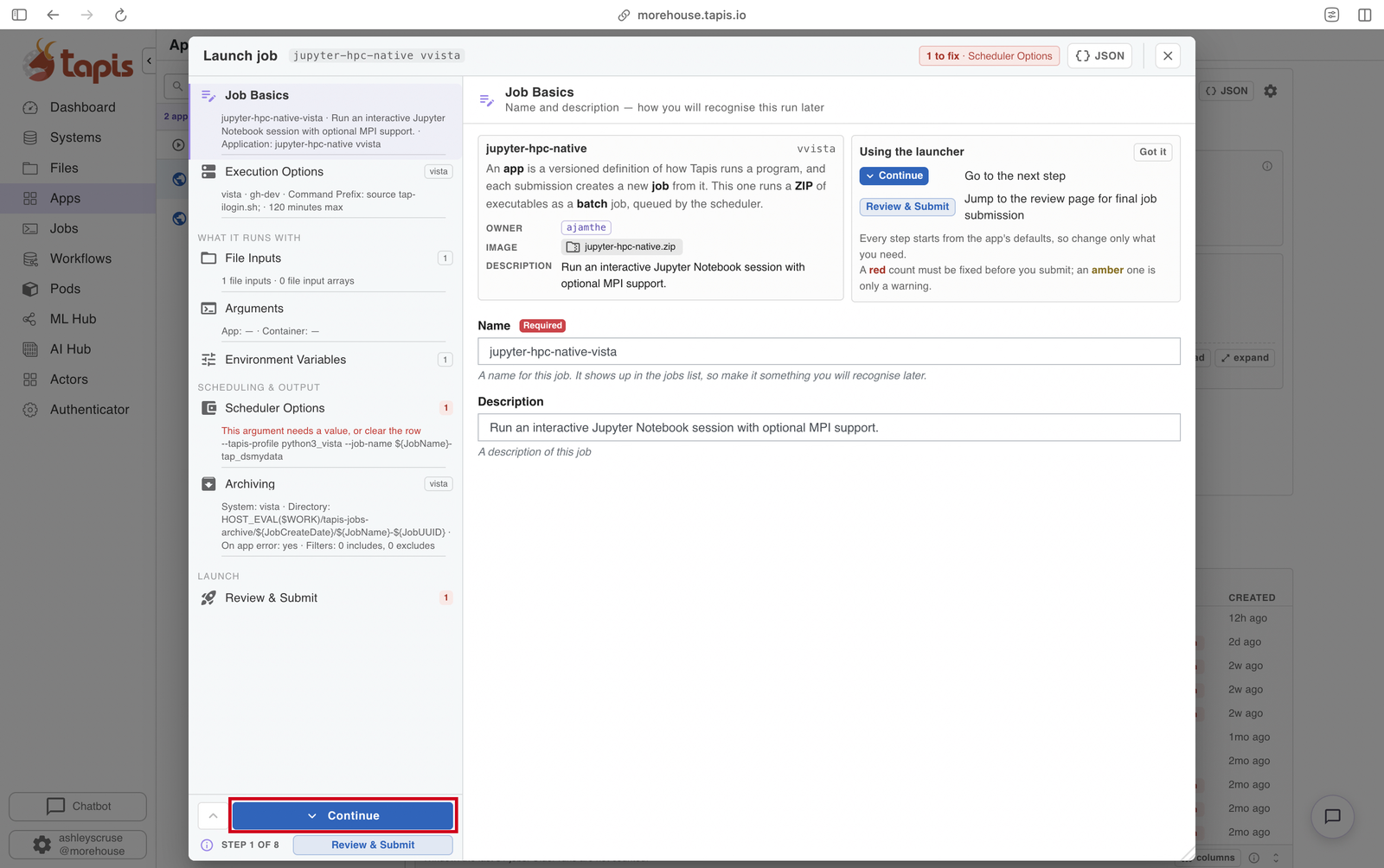
c. Job Basics
Don't change anything. Click Continue at the bottom left.
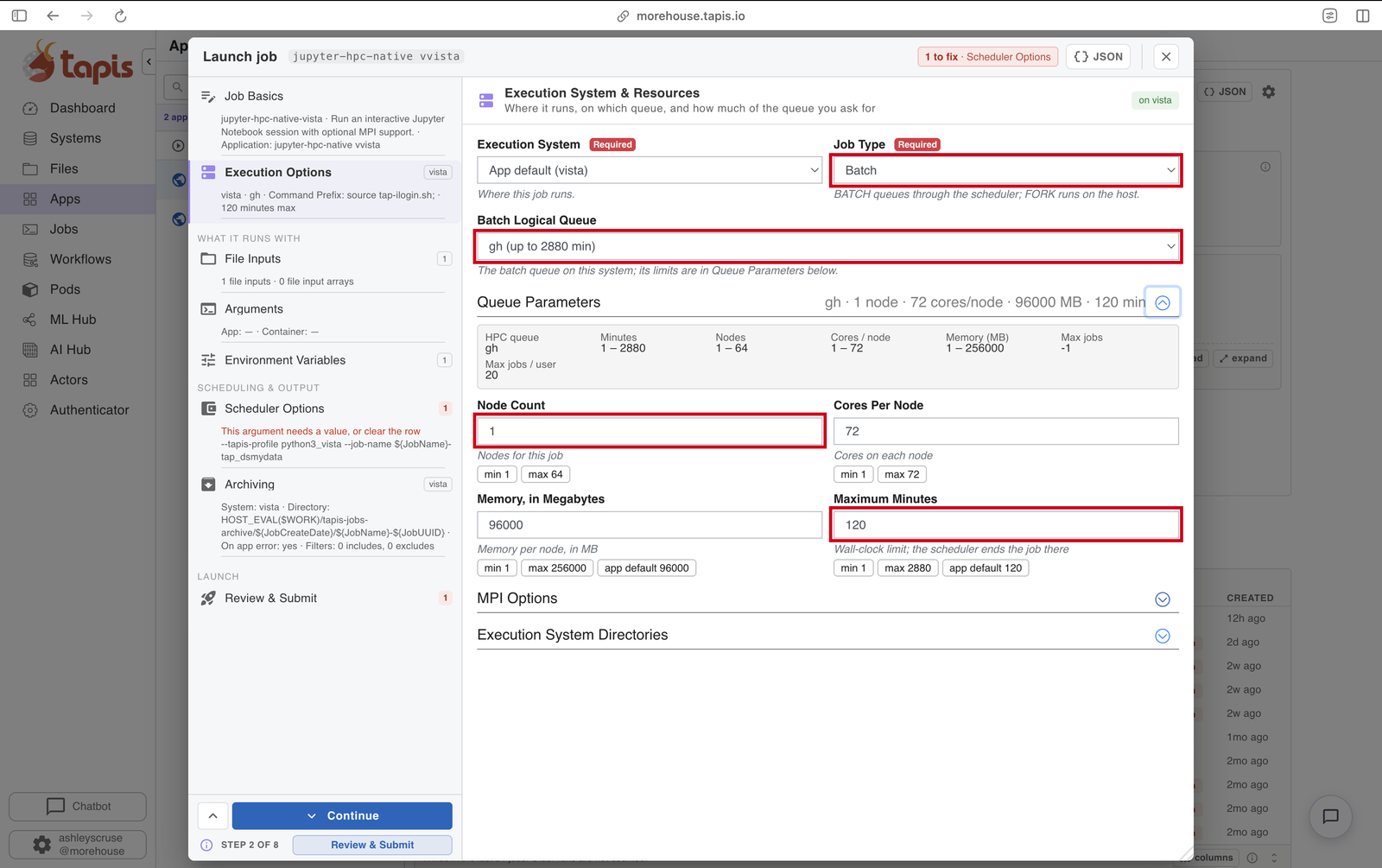
d. Execution Options
Job Type: Batch. Batch Logical Queue: change it to gh (it starts on gh-dev). Node Count: 1. Maximum Minutes: 120. Then Continue.
e. File Inputs, Arguments, Environment Variables
Click Continue on each. Don't change anything.
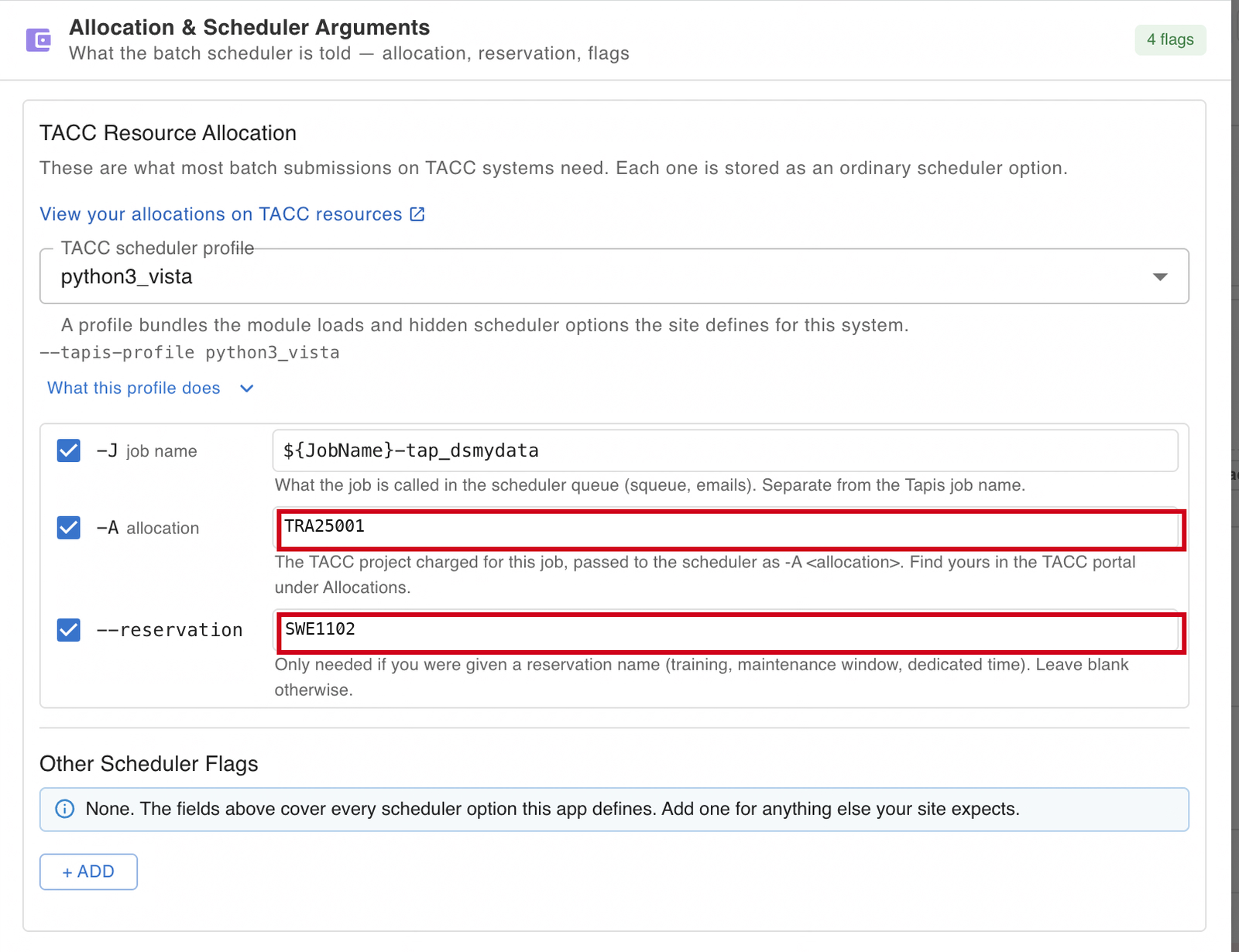
f. Scheduler Options
Make sure the -A allocation and --reservation boxes are checked. Type TRA25001 in the allocation box and SWE1102 in the reservation box. Leave the job name row as it is. Then Continue.
g. Submit
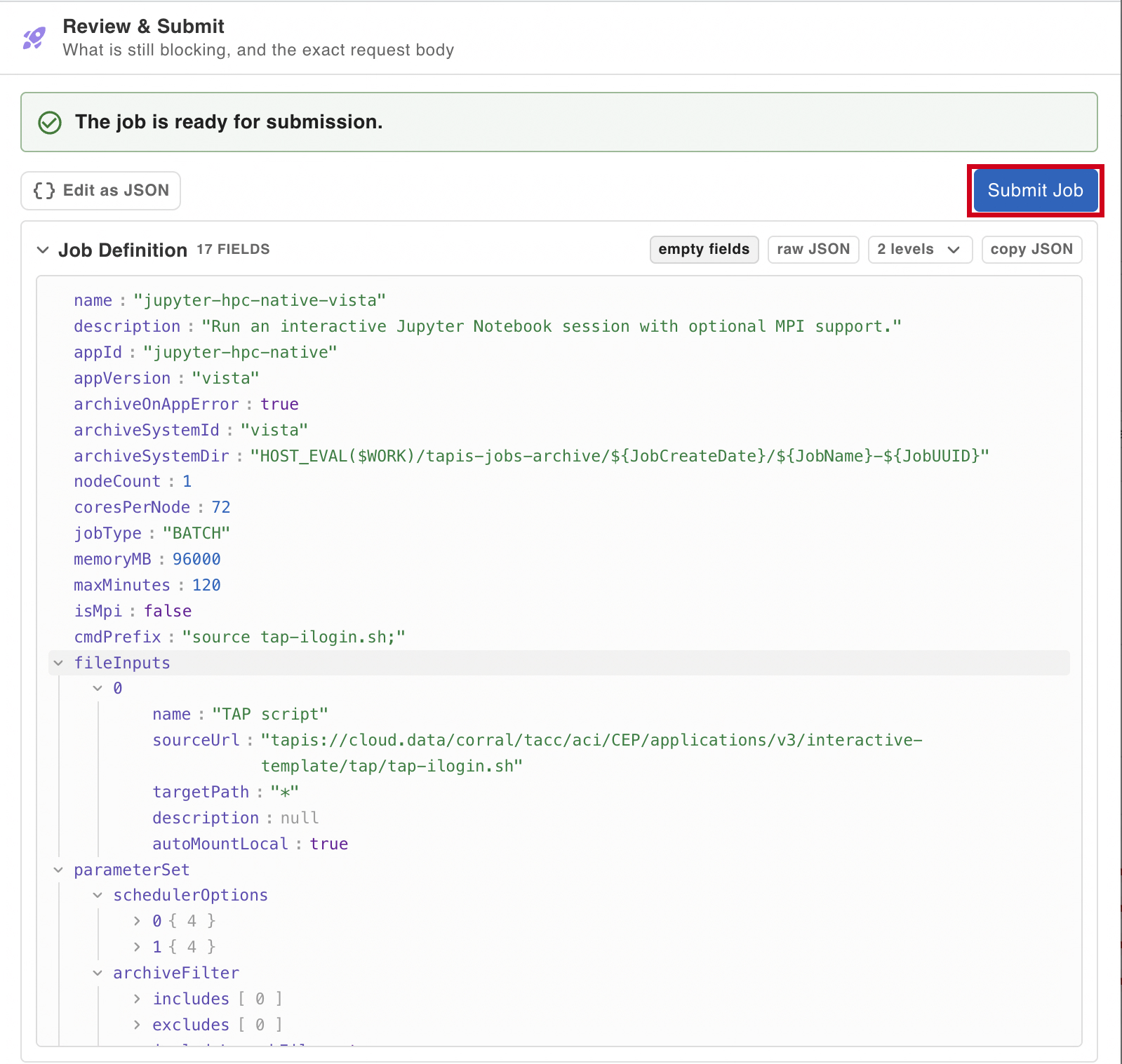
On Archiving, click Continue. On Review & Submit, check that it says The job is ready for submission, then click Submit Job.
Open Jupyter
Click Jobs in the left panel and click your job. Check that it shows -A TRA25001 and rsv SWE1102. Its STATUS will change from staging to running.
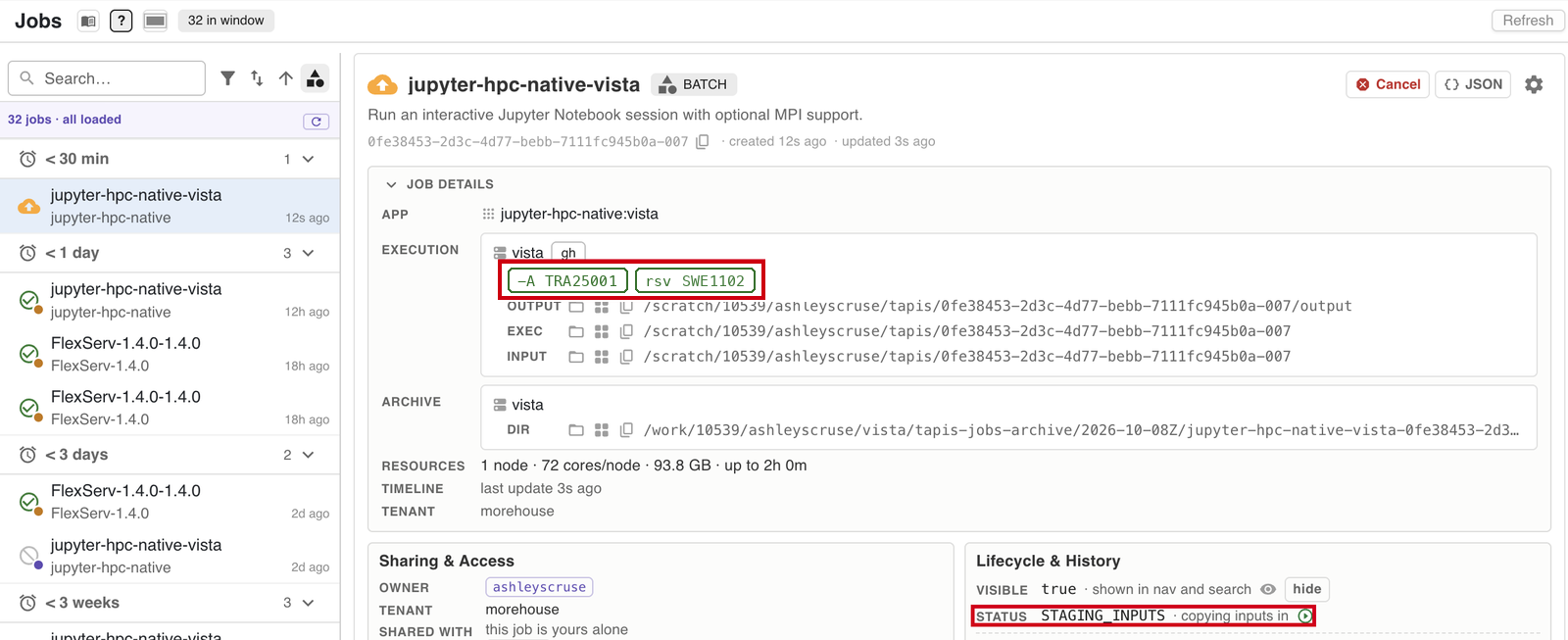
When it is running, click the button to open Jupyter. No button? Open the output file tapisjob.out, copy the address after JUPYTER_URL, and open it in a new tab.
Get the workshop
In Jupyter, click File → New → Terminal and type:
cd $WORK
git clone https://github.com/ashleyscruse/hpc-finetune-workshop
Then open hpc-finetune-workshop/notebooks/01-fine-tune.ipynb.
Run it
Click a cell and press Shift + Enter. Go top to bottom. A cell is done when the [*] beside it turns into a number.
Stuck?
Raise your hand. Most problems are one of these:
| What you see | Likely cause |
|---|---|
| Your session waits and never starts | The wrong project or reservation, or you still have another session running |
| "multiple projects" error | The project was not set. It should be TRA25001 |
| Can't log in to TAP | Check your TACC username and password, and wait for a fresh code from your authenticator app |
| Your job waits and never starts | A typo in the allocation or reservation, or you still have another job running |
| "multiple projects" error | The allocation box is empty or unchecked. It should say TRA25001 |
destination path already exists | You already have the workshop folder. Just open it |
| Can't find the workshop folder in the file browser | It was cloned somewhere else. Redo step 04, starting with cd $HOME |
| Can't submit, or Browse Files shows nothing | Your TMS keys aren't set up. Redo step 02 |
| "Can't see the shared folder" | Raise your hand |